

Table of Contents
Introduction to IMO App and Its Features
IMO is a lightweight messaging and calling app that offers free video calls, voice calls, and instant messaging. Because of its low data usage and smooth performance, it is very popular in regions where internet speed is limited. Its simple interface makes it easy to use for all age groups.
Key Functionalities for Users
- High-quality video & voice calls
- Instant messaging with stickers
- Group chats and group video calls
- Photo, video, and document sharing
- Multi-device sync
- Cloud-based chat backup
Accessing IMO Call History
Step-by-Step Guide for Android Phone Users
Follow these simple steps to view your IMO call history:
- Open the IMO app.
- Tap on the Calls tab at the bottom.
- You will see sections for All Calls, Missed Calls, Voice Calls, and Video Calls.
- Tap any call entry to view details, including duration and timestamp.
- If the call history is missing:
- Make sure the app is updated
- Avoid clearing IMO data
- Ensure call log permissions are enabled
Retrieving IMO Chat History
Ways to Back Up Your Chat History
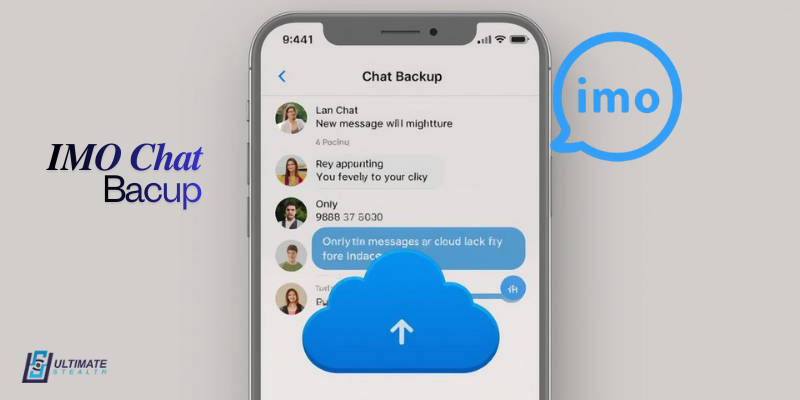
IMO automatically uses cloud sync, which keeps your messages safe. When you reinstall the app and verify your number, your chat history usually restores automatically.
Additional backup options include:
- Google Drive backup
- Local phone backup tools
- Third-party backup apps (for media files only)
Understanding Text and Media File Retention
- IMO stores text messages on the cloud.
- Media files (photos, videos, audio) are saved locally in your phone’s “IMO” folder.
- Clearing IMO cache or data can delete some messages or media.
- To keep data safe, avoid frequent data clearing.
Locating and Managing Media Files in IMO
Best Practices for Media Management
IMO creates a separate folder in your phone’s storage. Follow these steps:
- Open your phone’s File Manager.
- Search for the folder named IMO.
- Inside it, you will find:
- Images
- Videos
- Voice messages
- Documents
Best practices:
- Back up important files to Google Photos or Google Drive.
- Delete duplicate or unwanted files regularly.
- Free up storage to keep IMO running smoothly.
Data Recovery Methods for IMO Data
Popular Tools for Data Recovery
If your media files were accidentally deleted, these tools may help:
- Dr.Fone Data Recovery
- EaseUS MobiSaver
- DiskDigger (best for photos & videos)
- DigDeep Recovery
Important:
These tools can recover deleted media, not IMO text messages, because chat messages are stored on cloud servers and cannot be recovered by third-party apps.
Parental Control Tools for Monitoring IMO Usage
Monitoring IMO usage is important for parents who want to protect their children from excessive screen time, unsafe interactions, or misuse of messaging apps. While these tools cannot read private IMO chats, they can provide insight into app usage patterns, online activity, and device behavior. Below are some of the most trusted parental control brands, along with detailed descriptions.
1. TheOneSpy – Advanced Monitoring of App Activity & Screen Time
TheOneSpy is a powerful parental control tool known for its extensive monitoring capabilities. It allows parents to track the amount of time their child spends on IMO and other social media apps.
Key Features:
- Monitors overall screen time and app usage
- Sends activity logs for installed apps, including IMO
- Allows parents to set app restrictions
- Offers device usage reports to detect overuse
TheOneSpy is particularly useful for parents who want to gain deep insights into their child’s smartphone habits.

2. Qustodio – App Usage Monitoring + Safe Browsing Tools
Qustodio is one of the most popular family safety tools worldwide. It includes strong monitoring options for IMO and other messaging apps.
Key Features:
- Tracks time spent on each app, including IMO
- Offers web filtering and safe browsing protection
- Allows daily screen time limits
- Provides real-time activity reports
Qustodio focuses on creating a balanced digital lifestyle for kids by giving parents complete app usage visibility.
3. Norton Family – Strong Device and App Monitoring Features
Norton Family is a trusted parental control solution from Norton, a well-known cybersecurity brand. Although it doesn’t read IMO chats, it monitors how often IMO is used.
Key Features:
- Tracks app activity and time spent on social apps
- Sends alerts for unusual device usage
- Provides highly detailed reports on browsing and app activity
- Helps set healthy screen time schedules
Norton Family is ideal for parents who want a safe, regulated digital environment for their children.
4. FonSee – Social Media & Messaging Activity Alerts
FonSee offers monitoring features specifically designed for social media and messaging app usage patterns. It helps parents understand how often a child uses IMO and similar apps.
Key Features:
- Monitors activity across popular messaging apps
- Tracks usage time and frequency
- Sends alerts for suspicious or excessive online behavior
- Offers insights to help guide safer online habits
FonSee is a good option for parents who want a simple and easy-to-understand social activity tracker.
Encouraging Responsible Use of Monitoring Tools
Fostering Trust Between Parents and Children
Parental controls should focus on safety, not spying. Maintaining open and honest communication builds trust and helps children feel secure.
Benefits of Open Dialogue About Digital Activity
- Better awareness of online safety
- Development of healthy digital habits
- Reduced misuse of messaging apps
- Stronger parent–child relationship
Final Thoughts
IMO is a versatile messaging and calling app that makes communication easy and accessible. While it offers convenience and seamless connectivity, it’s important to use it responsibly and safely. Tools like parental controls and activity trackers help ensure a balanced digital experience, particularly for children, without compromising trust or privacy. By combining awareness, smart usage, and open communication, users can enjoy IMO’s features while staying secure and maintaining healthy digital habits.


