

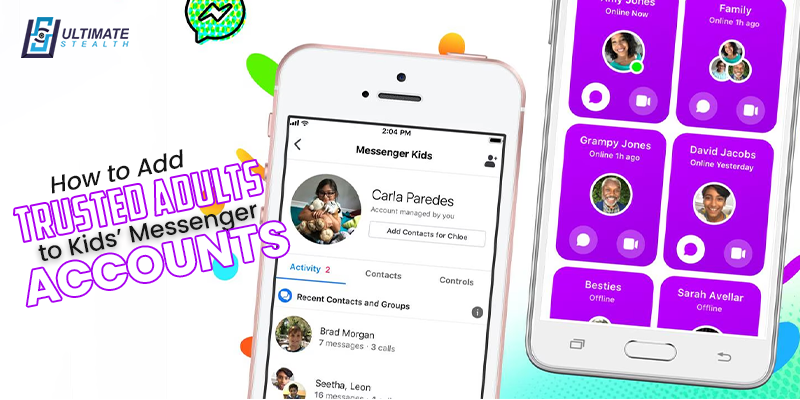
In an era where digital communication is as fundamental to childhood as the playground once was, parents face a unique challenge: how to grant their children the freedom to connect while ensuring their absolute safety. Facebook’s Messenger Kids has emerged as a popular solution, offering a “walled garden” where children can video chat and message friends and family without the risks associated with open social media platforms.
However, the safety of this garden depends entirely on who holds the keys. One of the most critical features of the app is the ability to curate a contact list of “trusted adults” grandparents, aunts, uncles, and close family friends who can interact with your child. But navigating the settings to add these adults isn’t always intuitive.
This comprehensive guide will walk you through every step of adding trusted adults to your child’s Messenger Kids account, explain the crucial difference between a “guardian” and a “contact,” and explore how major digital safety brands like TheOneSpy, Qustodio, and Net Nanny can complement these built-in controls to create a holistic safety net for your family.
Table of Contents
The Digital Village: Why Trusted Adults Matter
The old African proverb “It takes a village to raise a child” holds true even in the digital age. In the physical world, you wouldn’t hesitate to let your child chat with their grandmother or a favorite uncle. In the digital world, these connections are just as vital. They allow children to build relationships, practice digital etiquette, and feel connected to extended family members who might live miles away.
By adding trusted adults to Messenger Kids, you are effectively extending your family’s “village” into the online space. These adults can give good examples of digital communication. They can help children learn how to text, video call, and share photos responsibly before they move on to open platforms like Instagram or Snapchat in their teens.
Guardians vs. Contacts: Understanding the difference
Before you start sending invites, it is crucial to understand the two distinct roles an adult can play in your child’s Messenger Kids experience. Facebook distinguishes between a Parent/Guardian and a Contact.
1. The Parent/Guardian
A Parent or Guardian has administrative powers. When you add an adult as a guardian, you are essentially handing them a set of keys to the account.
- Capabilities: They can add or remove contacts, view the child’s chat history, delete messages, and manage screen time settings.
- Best For: Co-parents, stepparents, or primary caregivers who need full oversight of the child’s digital safety.
2. The Trusted Adult Contact
A contact is simply someone the child can talk to. They have no administrative rights and cannot see who else the child is talking to or manage any settings.
- Capabilities: They can send messages, initiate video calls, and receive photos/videos from the child.
- Best For: Grandparents, aunts, uncles, godparents, and adult family friends.
Knowing this difference can prevent awkward situations. You probably want Grandma to be able to video chat, but you might not want her to get notifications every time your child sends a sticker to a friend from school.
Step-by-Step: Adding Another Parent or Guardian
If you are co-parenting or want your partner to share responsibility for monitoring your child’s Messenger Kids account, you can add them as a parent or guardian. Keep in mind that you must already be Facebook friends with the person you want to add.
To begin, open the Facebook app and log in using the main account that was used to create your child’s Messenger Kids profile. Tap the menu icon (three horizontal lines)—located in the bottom-right corner on iOS and the top-right corner on Android—and select Messenger Kids. If the option is not immediately visible, tap See More.
Next, select your child’s profile. If you manage multiple children’s accounts, choose the profile of the child you want to edit. Once the profile opens, go to the Controls tab. Under the Parents/Guardians section, you will see your own name listed. Tap Add additional parent or guardian, search for your partner or co-parent in your Facebook friends list, and select their name.
After tapping Add, an invitation will be sent. Once the other adult accepts the invitation, they will have the same administrative privileges as you, including managing contacts, viewing chat history, and adjusting safety settings.
Step-by-Step: Adding a Trusted Adult as a Contact
Adding a trusted adult as a contact allows your child to safely communicate with specific adults, such as grandparents, aunts, uncles, or close family friends. For security reasons, you cannot add someone using a phone number; the adult must be connected to you on Facebook.
Method 1: From the Parent Dashboard
Start by opening the Facebook app and navigating to Messenger Kids from the menu. Select your child’s profile and tap the Contacts tab. Choose the option to add adults (often labeled Add Friends or Choose People).
A list of your Facebook friends will appear. Scroll through the list or use the search bar to find the adult you want to add, then tap Add. The adult will receive a notification in their regular Facebook Messenger app and must accept the request before the connection becomes active.
Method 2: From the Child’s Device (“Ask to Add” Feature)
Messenger Kids also allows children to request permission to add someone. On their device, the child opens Messenger Kids and goes to their friend list, where they may see suggested contacts based on the parent’s Facebook friends.
If the child taps Add next to a name, the request is sent to the parent, not the adult. You will receive a notification in your Parent Dashboard, where you can review and approve or deny the request.
Troubleshooting: “Why Can’t I Find Them?”
If an adult does not appear in the contact search list, the most common reason is that you are not Facebook friends with them. To add an adult to Messenger Kids, a Facebook friendship is required.
Another possible issue is strict privacy settings. The adult may have limited access to third-party apps or tagging in their Facebook settings, preventing them from appearing in Messenger Kids. Ask them to review their Apps and websites’ privacy settings. Finally, make sure the person has not been accidentally blocked on your main Facebook account.
Beyond Messenger: A Holistic Approach to Digital Safety
While Messenger Kids is a fantastic tool for controlled communication, it is just one piece of the digital safety puzzle. As children grow and their digital footprint expands beyond a single app, parents often need more robust tools to manage screen time, filter content, and monitor interactions across the web.
This is where specialized digital safety brands come into play. Integrating these tools can provide a safety net that extends far beyond Facebook’s ecosystem.
TheOneSpy: Advanced Monitoring for Proactive Parenting
TheOneSpy is an advanced parental monitoring solution that has been developed for parents who are interested in gaining more information about their child’s online activities. The solution provides several features, including social media monitoring, message tracking, call logs, GPS location tracking, and keyword alerts.
Why it complements Messenger Kids:
Messenger Kids allows parents to manually monitor conversations, but realistically, no parent can watch every message in real time. That’s where TheOneSpy stands out.
It works quietly in the background and sends instant smart alerts when it detects potentially risky behavior—such as inappropriate language, suspicious contacts, or unusual online activity.
This makes it easier for parents to let their kids enjoy the online world with confidence, knowing their safety is always a priority. TheOneSpy offers peace of mind for parents while ensuring a safer digital experience for children.
Qustodio: Complete Cross-Platform Control
Qustodio is widely known for its strong cross-platform parental control features. It supports Windows, Mac, Android, iOS, and Kindle devices, making it ideal for families with multiple devices.
Why it complement Messenger Kids:
While Messenger Kids includes basic controls like app-specific sleep mode, it does not manage the rest of the device. Qustodio fills this gap by allowing parents to set device-wide screen time limits, block or allow specific apps, and view detailed activity reports. This ensures children don’t simply switch from Messenger Kids to games or videos after bedtime.
Net Nanny: The Intelligent Content Filter
One of the oldest and most trusted names in digital safety, Net Nanny specializes in real-time content filtering. Its AI analyzes webpage context and blocks inappropriate material, even if the site hasn’t been previously flagged.
Why it complements Messenger Kids:
Messenger Kids limits unsafe links within the app, but children may still access the web through browsers or other apps. Net Nanny ensures that if a trusted adult accidentally shares a harmful link or a child stumbles onto unsafe content elsewhere, it is blocked instantly.
Google Family Link & Microsoft Family Safety
For parents looking for built-in, budget-friendly solutions, OS-level tools are extremely effective. Google Family Link allows Android parents to approve apps, manage screen time, and track device usage, while Microsoft Family Safety offers similar controls for Windows PCs and Xbox consoles.
Conclusion
Adding trusted adults to your child’s Messenger Kids account is a simple and effective way to help them stay connected with family safely. By separating guardians from friends and following a few easy steps to manage these lists, you can create a secure group of people for your child to interact with, keeping them protected from the risks of the open internet.
Remember, no app can do it all. By combining Messenger Kids’ built-in features with tools like TheOneSpy, Qustodio, or Net Nanny, you can create a strong system to safeguard your child online. As your child’s digital world grows, this gives you the confidence to guide and protect them every step of the way.


